FMA Help
Please have a look at FMA extensive FAQs first.
Your question is not answered? Get in touch with us via the FMA contact page.
Manage your FMA Account.
I just found FMA, what can I do with a member account?
I just joined FMA, how do I edit my FMA profile?
I am an FMA member, how do I download music from the FMA?
I am an FMA artist, how do I upload my music on FMA?
I want an FMA Netlabel to manage my artist page?
How can I save my favorite tracks on FMA?
How can I support artists I discover on FMA?
How can I add monetization tooling to my artist page?
Licenses on FMA.
I have questions about how to legally use the music I find on the Free Music Archive. Can you help?
How can I tell which license is being used for a specific track?
Some CC licenses state "NonDerivative" only. But what exactly is a "Derivative work"?
What exactly does "NonCommercial" mean?
I'm not sure whether I have permission to make a certain use. Who should I contact?
How can I get in touch with FMA artists?
I am a copyright owner and I need to talk about a possible infringement. Who should I contact?
I am an FMA member and I have received a claim notice on a track I used, what should I do?
FMA Tech Support.
I just signed up for a new account, but never received a confirmation e-mail. What now?
How do I reset my FMA password?
How do I deactivate my account?
I need more help and guidance to continue on Free Music Archive?
I just found FMA, what can I do with a member account?
FMA offers users a vast catalog of original music by independent musicians and artists. All users can download original music on FMA, whether you are a member or not. However, signing up with the FMA and becoming a member allows you to:
- Build your own Free Music Archive profile
- Create and save a list of favorite tracks
- Create mixes of tracks from Free Music Archive
- Stream your mixes or your list of favorites
- Connect with FMA artists and community
How to get an FMA account?
- To create your FMA account please sign up. Sign up here
- If you already have an existing FMA account, please Login here
- If you need to update your FMA account, please Reset your password here
After verifying your FMA account, you are now an FMA member. To become an FMA artist, netlabel or curator, please email to mischa@tribeofnoise.com with the subject: “FMA account: ……” (enter the type of account you would like)
I just joined FMA, how do I edit my FMA profile?
Under your profile name, you will find your FMA drop-down menu where you can manage your FMA account.
- Go to “Edit Profile” in your FMA drop-down menu
- In “Profile” you can add & edit your profile name, location, bio, and image.
- In “Account” you can add & edit your email address for contact
- In “Notifications” you can enable or disable all kinds of FMA notifications
I am an FMA member, how do I download music from the FMA?
- Clicking the downward-pointing arrow next to every track will download individual MP3s
- Clicking the downward-pointing arrow under the album artwork will enable users to save entire albums
- Before downloading, make sure to check the license by clicking on “specific conditions” in the download pop up
I am an FMA artist, how do I upload my music on FMA?
- Login to your FMA account
- Go to "manage artists" in your FMA profile drop-down menu
- Select the artist page you want to upload tracks on
- Click "upload" on your artist page and the upload wizard will guide you
I want an FMA Netlabel to manage my artist page?
With your permission, you are able to grant FMA Netlabels the right to upload your tracks on their FMA Netlabel page and manage your artist page.
- Go to the dropdown menu under your FMA Username
- Click on the “Manage Rights” button Click on the “+ Add Label” button
- Enter the name of the FMA Netlabel(s) & click on the “Save” button
- Select which Artist rights you would like to grant the FMA Netlabel
- To finalize, scroll below and click the “Save” button
Would you like to see first how to grant FMA Netlabels rights to manage your artist page? Follow the FMA Manage Rights Tutorial here
How do I make a mix on FMA?
Mixes on FMA help you group tracks you like, tracks you think are great for specific reasons, and also add a spotlight to the artists featured in your mixes.
- After you log in, go to "manage mixes” in your FMA drop-down menu
- Click "Create New Mix" and enter the title of your new mix
- Now you add info to your mix such as description, image and publish it
- To add tracks to your mix, click on the + button next to the tracks
To access your created mixes, click “view profile” in your FMA drop-down menu and go to the mixes section.
How can I save my favorite tracks on FMA?
You can add tracks to the Favorites list while browsing FMA. To mark a track as a Favorite:
- Login and click on the Heart icon next to the track
- The Heart will go from clear to black meaning the track is Add to Favorites
- You will find your Favorites catalog on your member overview page
How can I support artists I discover on FMA?
When visiting the artist page, you can support the artist in different ways.
I want to spotlight artists I like:
- Create FMA mixes featuring the artist’s tracks
- Become an FMA Curator with the power to publish blog posts of the artists
- Share the artist page with your family and friends
- Tweet, blog about the artist and their catalog, and link back to the page or song online
I want to give a helping hand to the artists I like:
- Purchase to support: Check the artist's website for merchandise, vinyl, or (online) tickets
- Tip or donate: Click the "Tip Artist" button to make a donation (PayPal, Kickstarter)
- Support as you roam: Click on the “Support artist” button to support the artist with micropayments from your Coil Membership.
With a Coil Membership you will be able to browse, surf, and access all websites and services connected with Coil while only paying a $5 membership per month. You will have access to original (premium) content from journalists, musicians, photographers, game developers, podcasters, and many other creatives across varieties of sites.
On FMA, artists have enabled this functionality so that you will be able to directly support them as you roam their artist page. Small amounts of money will travel from your Coil Membership to the specific FMA artist you are visiting at the moment. With Coil Membership, micropayments are paid in real-time. If you are interested in this 'auto-tipping' tool, please follow the Web Monetization steps to get your Coil Membership.
How can I add monetization tooling to my artist page?
FMA members can support you via your FMA artist page in different ways.
Purchase to support: Add your (website) links for users to buy your merchandise, vinyl or (online) tickets
- Go to "manage artists" in your FMA profile drop-down menu
- Click "edit" behind your artist page
- Go to "Links" to add and edit all your important links
Tip or donate: You are able to add a tip or donation link to your artist page (PayPal, Kickstarter) which is connected to your “Tip artist” button on your artist page
Support as they roam: With a Coil Creator account, you are able to add your payment pointer to your artist page and receive micropayments from Coil Members roaming your page, this is connected to your “Support artist” button on your artist page
- Go to "manage artists" in your FMA profile drop-down menu
- Click "Edit" behind your artist page
- Go to Monetization to enter your payment pointer
If you are interested to enable this 'auto-tipping' tool for your artist page, please follow the FMA Web Monetization steps to get your Coil Creator account.
How can I help support FMA?
Thank you for your interest in supporting Free Music Archive! You will help support FMA by discovering new music and introducing new users to FMA, Spread the word!!
I have questions about how to legally use the music I find on the Free Music Archive. Can you help?
- Start by reading the FMA License Guide to get to know the CC licenses available on FMA and which ones match your project
- Follow the FMA FAQs for more details: video producers, musicians/audio producers, and educators
To license tracks beyond the scope of how they're listed on FMA, please contact the artist via the artist contact section on their artist page.
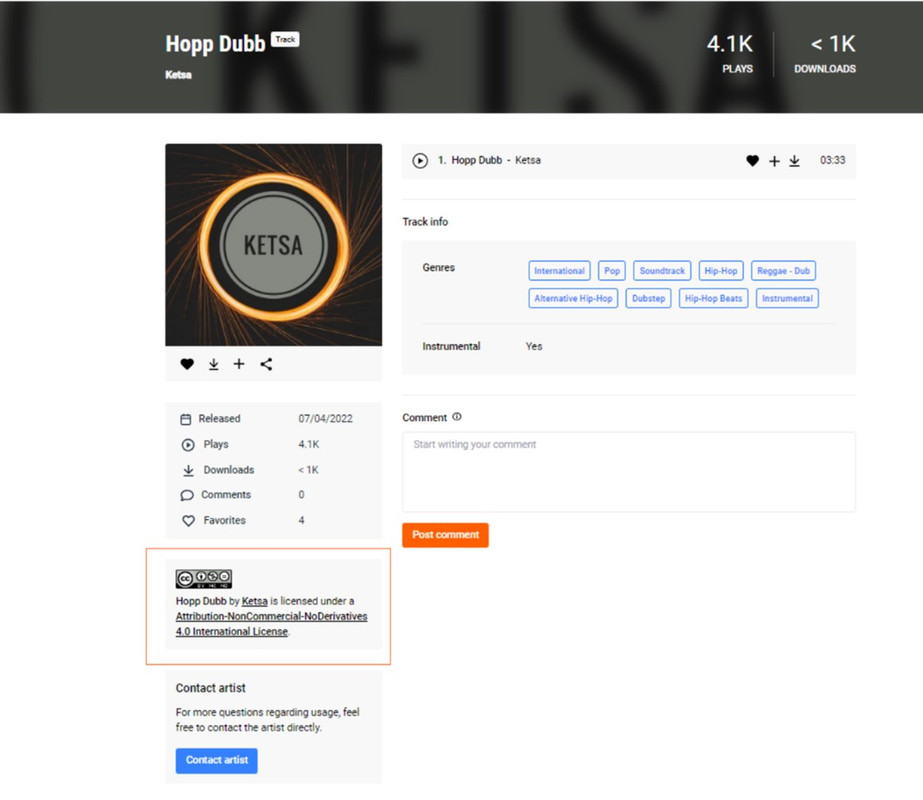
How can I tell which license is being used for a specific track?
On the left side of the track page, you will see the specific Creative Commons license attached to the track.
Some CC licenses state "NonDerivative" only. But what exactly is a "Derivative work"?
Generally speaking, mashups and remixes are derivative works. Under Creative Commons licenses, incorporating a song into a video is a derivative work, too. NonDerivative licensed music must passed along unchanged and in whole, and creators must be credited. If you remix, transform, or build upon the material, you may not distribute, publish, share, or post the modified material. Syncing a track to video/moving images constitutes a derivative work, which is prohibited by this license.
What exactly does "NonCommercial" mean?
A commercial use is one primarily intended for commercial advantage or monetary compensation. You may NOT use non-commercial licensed tracks for fundraising, advertising, or promoting a product or service without further permission, even if you're a non-profit organization.
How to credit artists?
You can use CC-licensed materials as long as you follow the license conditions. One condition of all CC licenses is attribution. A proper attribution not only includes name of the song, name of the artist but where it was retrieved from and the license information for others to find.
- Title: Single Steps
- Author: Ketsa / https://freemusicarchive.org/music/Ketsa/
- Source: Free Music Archive / https://freemusicarchive.org/music/Ketsa/1000/single-steps/
- License: CC BY-NC-ND / https://creativecommons.org/licenses/by-nc-nd/4.0/
Read more: Best practices for Attribution.
I'm not sure whether I have permission to make a certain use. Who should I contact?
Checking with the artist of the track is the main person to contact as they are the rightsholder of the track(s). Creative Commons and the FMA can't give you definitive answers about particular uses. Creative Commons simply makes available a group of pre-written licenses, and they generally don't know anything about the specific works that are the subjects of CC licenses. Similarly, FMA doesn't know anything about the specific terms under which artists offer their music other than what the artists selected, which is expressed as the license displayed on a given track's page.
How can I get in touch with FMA artists?
- Go to the artist page Click on the “Contact” button
- Use the message form or artists' links to get in touch
I am a copyright owner and I need to talk about a possible infringement. Who should I contact?
If you are a copyright owner or you represent one and believe that copyrighted works have been used in a way that constitutes copyright infringement, you may send a written notification, ideally over email at info@tribeofnoise.com Please include a link to the material in question if possible.
I am an FMA member and I have received a claim notice on a track I used, what should I do?
- Double-check the Creative Commons License and requirements attached to the track. It could be that you used the track incorrectly and did not meet the conditions of the license. Please follow the FMA License Guide to see which CC License is connected to the track and how you are able to use it.
- If you have used the track correctly under the Creative Commons license and still receive a claim notice, please do not hesitate to contact the artist on their FMA artist page to check if the track(s) are licensed for FMA.
- If you are not able to use the track in your project due to the requirements of the Creative Commons License attached, please do not hesitate to contact the artist on their FMA artist page to ask for permission.
What are the differences between "International" licenses and ones for specific countries like "The United States"?
All Creative Commons licenses apply worldwide. In past versions of these licenses (versions 3.0 and earlier), they would specify a country or specific jurisdiction to reflect the local nuances in laws. Both the country-specific (ported) and the international licenses are intended to be legally effective everywhere. The latest suite of licenses (4.0) has been drafted with particular attention to the need for international enforceability.
I just signed up for a new account, but never received a confirmation e-mail. What now?
Sorry about this. Because "free" is in the name of our website, funny things happen with e-mails and spam filters. You can either try again, check your spam filter for our confirmation message, or send us a note and we'll activate your account for you.
How do I reset my FMA password?
- Go to Sign in Click on “forgot your password?”
- Enter your email address
We'll send you an email with a link to reset your password. Be sure to also check your spam folders.
How do I deactivate my account?
- Go to “Edit Profile” in your FMA drop-down menu
- In “Account” click on the “Close Account” button
I need more help and guidance to continue on Free Music Archive?
Please don’t hesitate to contact the FMA team for any help, suggestions, and feedback. Our doors are always open. Go to the FMA contact page or send an email to mischa@tribeofnoise.com